1. Create a new Volume
Installation is straight forward on Docker-based systems. Open the dockercompose.yml file and append the Volumes as follows;
volumes:
      - /:/srv
      - /DATA/AppData/filebrowser/filebrowser.db:/database.db
      - /mnt/naswd:/srv/NAS-Filika
      # Add the following line
      - /DATA/AppData/filebrowser/branding:/branding
2. Create Branding Folder
Refer to the documentation.
sudo mkdir -p /DATA/AppData/filebrowser/branding
sudo touch /DATA/AppData/filebrowser/branding/custom.css
3. Tell Filebrowser to use the Branding
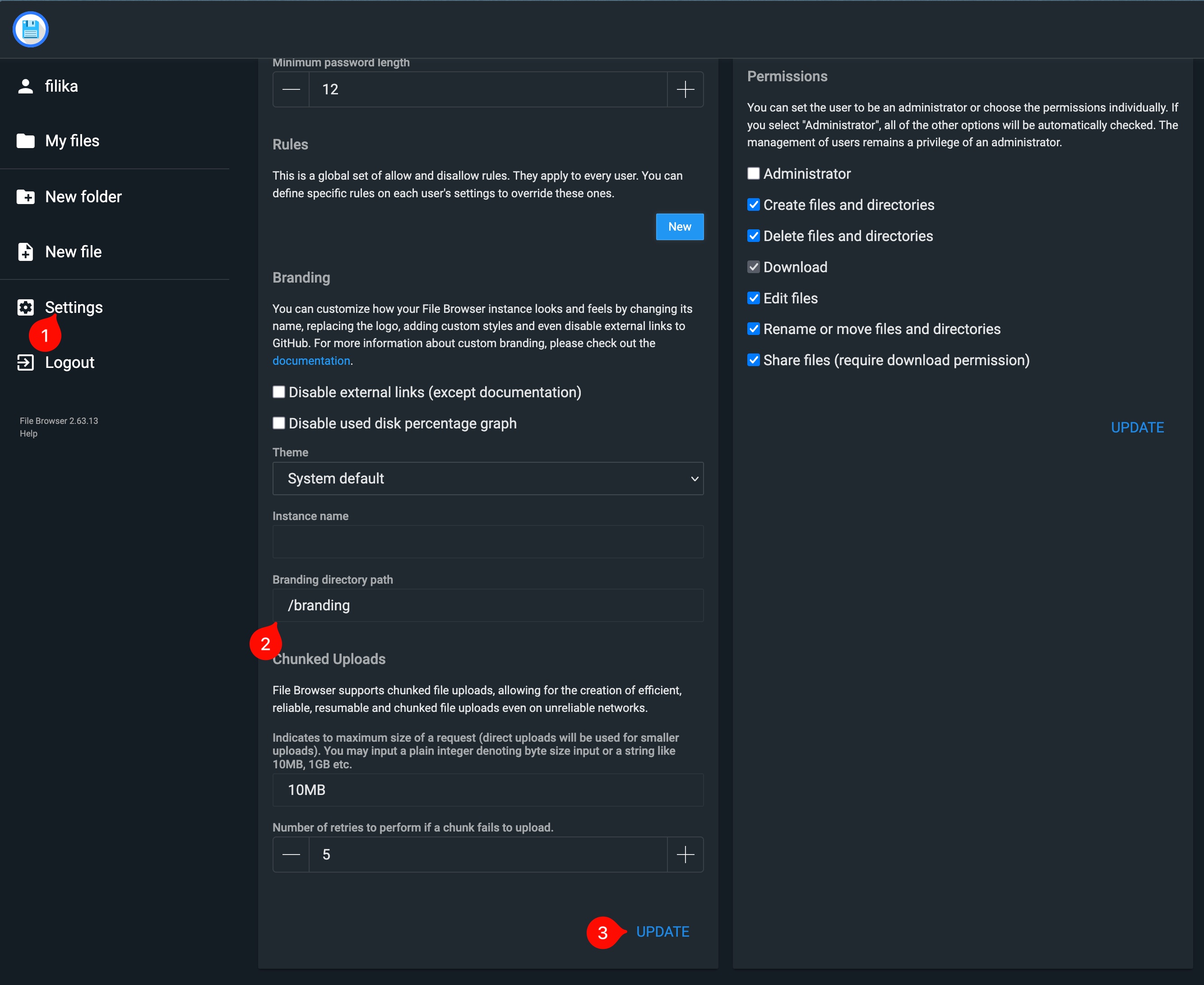
- Open the Filebrowser web interface (
http://<server_ip_add>:8085). - Go to Settings on the left menu.
- Click the Global Settings tab.
- Scroll down to the Branding directory path box.
- Type
/brandinginto the box. - Scroll to the bottom and click Update.
4. Write the Custom Color Code
Now for the fun part! You can use Filebrowser’s built-in text editor to write the code.
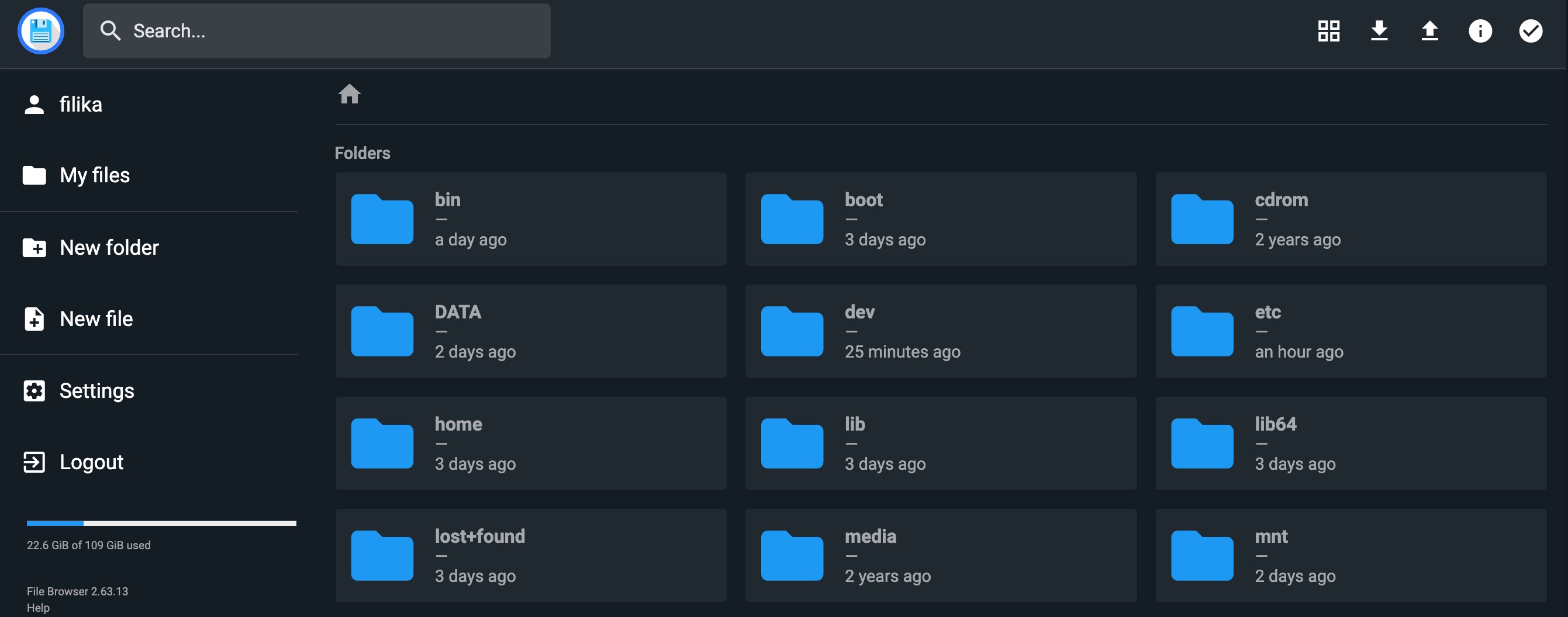
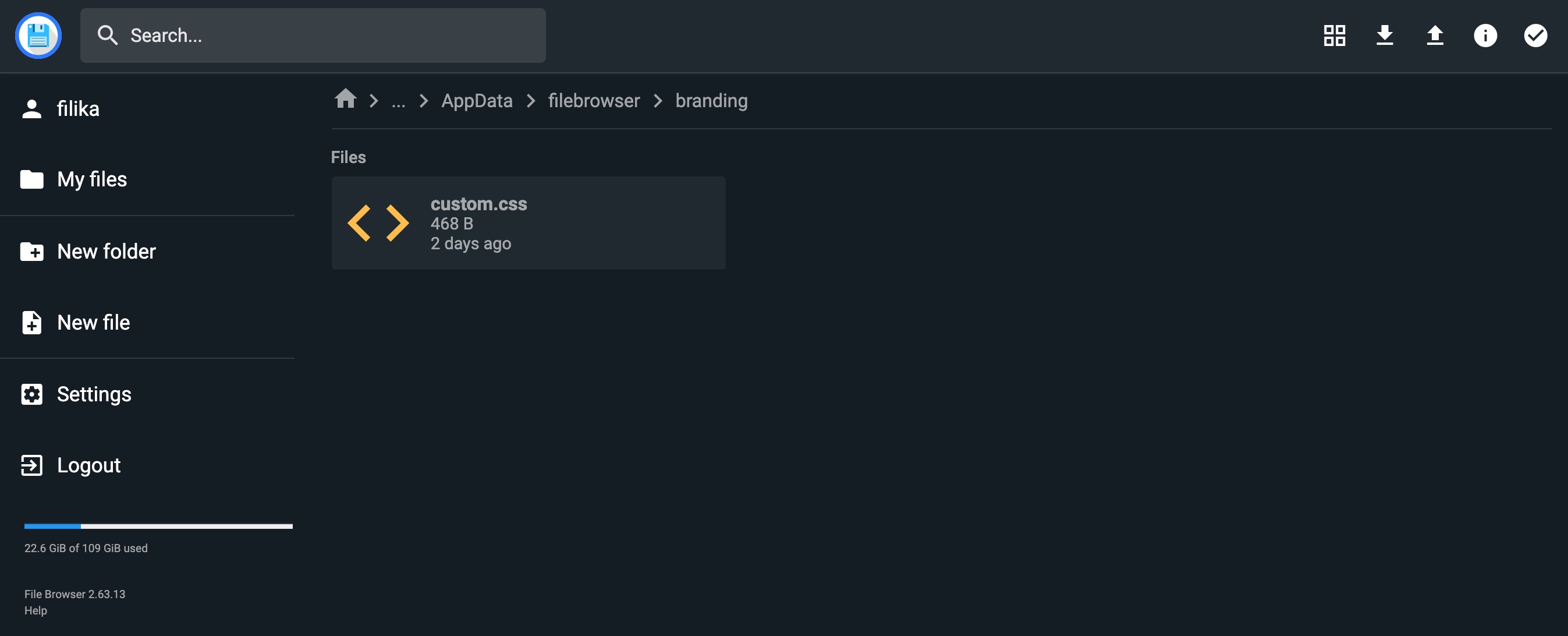
- Still inside Filebrowser, navigate through your actual files to the file we created: Go to
/DATA/AppData/filebrowser/branding/and click oncustom.css.
- The file will open in a text editor. Paste the following CSS code to change your NAS folder to orange (you can change
#FF5722to any color hex code you like):
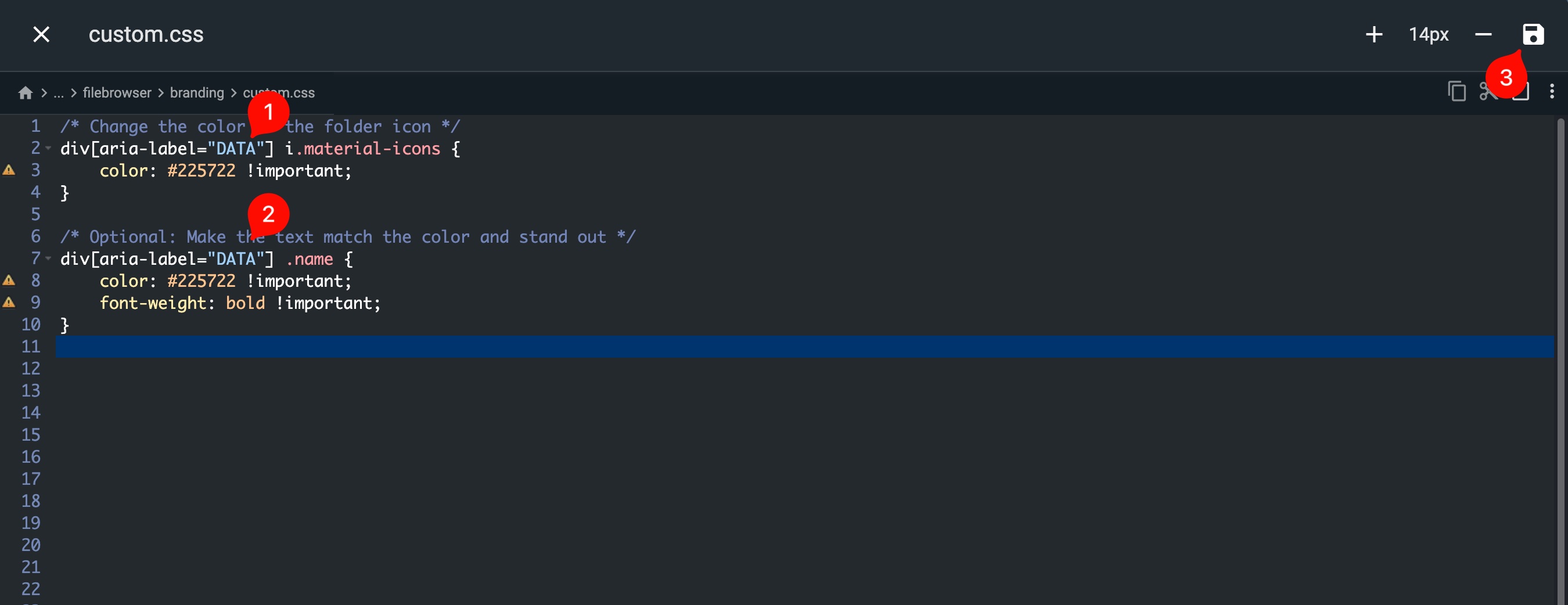
/* Change the color of the folder icon */
div[aria-label="NAS-WD"] i.material-icons {
    color: #FF5722 !important;
}

/* Optional: Make the text match the color and stand out */
div[aria-label="NAS-WD"] .name {
    color: #FF5722 !important;
    font-weight: bold !important;
}- Click the Save icon in the top right corner.